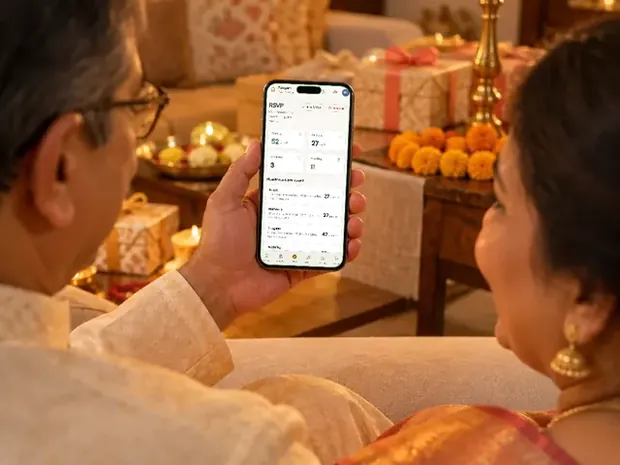
Personalised wedding invitations with each guest's name: a personal link, a greeting and only their functions
How to send every guest a personalised wedding invitation with their own name, show each one only their functions, and see who opened it and who replied.

To send every guest a personalised invitation, give each one their own link: it opens with their name, shows only the functions you invited them to, and tells you when they open it and reply. With Aangan, our guest dashboard, you add your guest list once, tick each guest's functions and send from your own WhatsApp, one tap per guest. A name typed on a picture card suits a short list, until a plan changes.
On this page
- Three ways to put each guest's name on the invitation
- How it works with Aangan, step by step
- What each guest sees
- The tracking: who opened it, who replied, who needs a nudge
- How to write each guest's name
- Sending them all from your own WhatsApp, safely
- When a name on every invitation is not worth it
- Your guest list stays private
- Wording you can copy
- Designs
- Questions
When the first screen of an invitation says "Pranaam, Nani ji", it stops being a forward. It is her invitation. Many families ask us for exactly this: an invitation with each guest's name on it, that shows each guest only the functions they are invited to.
This page explains it in plain words: the three ways to do it, how it works with Aangan, what each guest sees, how to write the names, and what you can and cannot see after sending. Aangan is ours, so weigh what we say about it with that in mind.
Three ways to put each guest's name on the invitation
There are three ways. They suit different families and different list sizes.
| Name typed on a picture card | Mail merge into files | A personal link for each guest | |
|---|---|---|---|
| How it works | Someone types each name on the card and saves one picture per guest | Your guest list fills in the names, one file per guest | Each guest gets their own link, and it greets them by name |
| Good for | A short list of 20 or 30 | A long list, if someone at home knows Word or Canva | Any list, more so with several functions |
| Only their functions | Only with a separate card for each group | Only with separate files for each group | Yes, guest by guest |
| A time or venue changes | Make and send every card again | Make and send every file again | Change the invitation once; every link shows it |
| See who opened it | No | No | Yes, with a guest dashboard |
| Replies | Messages and calls, counted by hand | Messages and calls, counted by hand | On the invitation, counted for each function |
A name typed on a picture card
The simplest way. Someone opens the card, types "Sharma ji and family" at the top, saves it, and does it again for the next guest. It works for a small list when every plan is final. The trouble comes when something changes: one moved time means making and sending every card again.
Mail merge
Mail merge is the tool offices use for letters. Microsoft Word's mail merge makes "a batch of documents that are personalized for each recipient" from a list such as an Excel sheet, in Microsoft's own words (its guide). Canva's Bulk Create does the same with a design: each row of your sheet makes one version of the card. Canva's Help Centre lists Bulk Create for Canva Pro and its other plans, not the free one, on a computer, with up to 300 rows at a time. Either way, you still send each file one by one, and every change means making them all again.
A personal link for each guest
One invitation, with a separate link for every guest. Each link opens with that guest's name and shows only their functions. When a time changes, the invitation is changed once and every guest sees the new time on the same link. This is what Aangan does, and what the rest of this page is about.
How it works with Aangan, step by step
Aangan is the guest dashboard you can add to an Invifest invitation. It opens on your phone or computer, with nothing to install, and parents and siblings can use it too. Our team connects it to your invitation for you, so there is nothing technical for the family to do. Here is the whole job, from the list to the last reply:
- Add your guest listType names one by one, paste them from WhatsApp, or upload the Excel sheet you already keep. Write each name the way you will greet them: "Sharma ji and family", "Bua ji", "Rohan".
- Make groups, if they helpBua's side, Papa's office, the college friends. Groups are for you: they make a long list easy to filter and search.
- Tick who is invited to which functionTick the functions for one guest, or for a whole group at once. A colleague gets the reception; close family gets everything.
- Choose the greetingOne word before every name: Dear, Respected, Namaste, Welcome, or your own. Any guest can also have a line of their own.
- Send from your own WhatsAppOne tap opens your WhatsApp with that guest's message and link ready, and you press Send. "Send to everyone, one by one" takes you down the list.
- Watch the replies come inSee who has opened it, who is coming, and how many people for each function.
What each guest sees
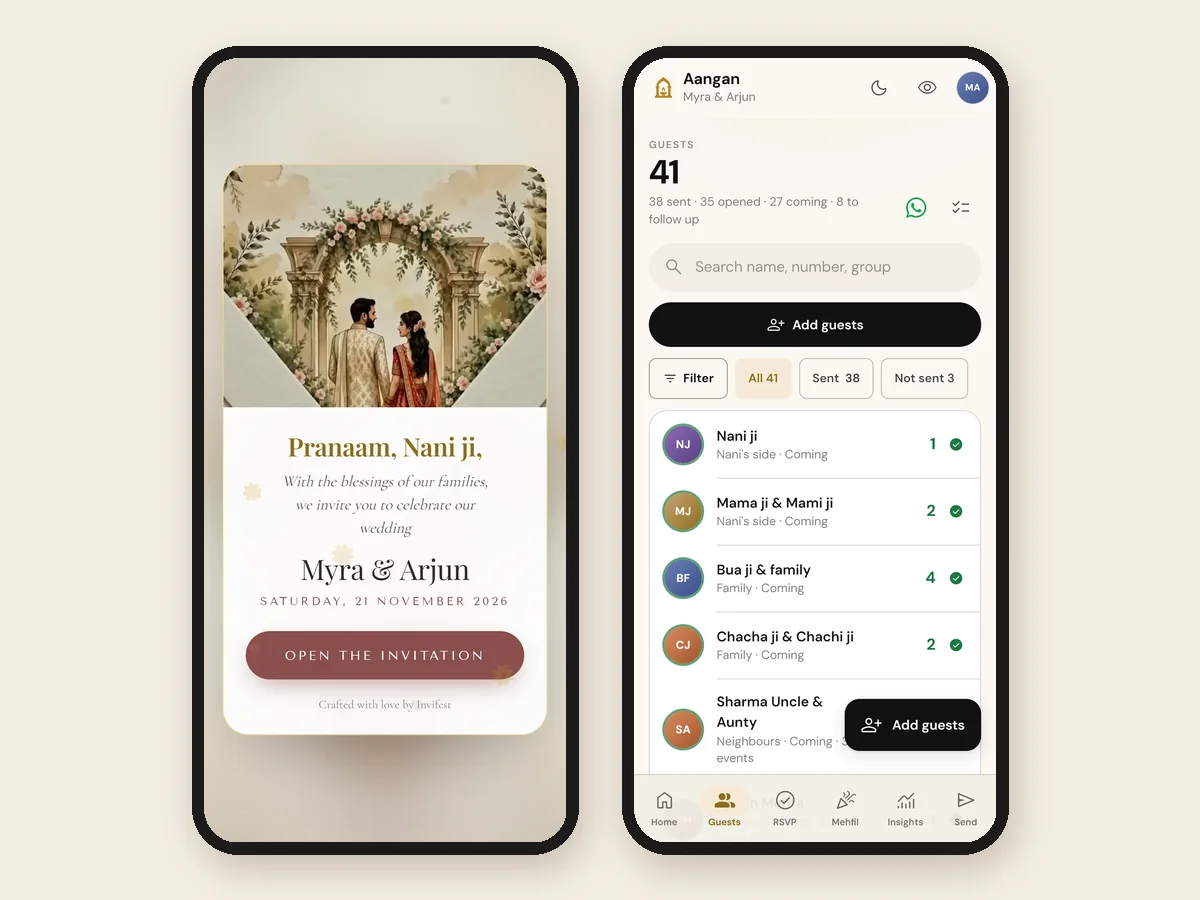
Your guest taps the link in WhatsApp. There is nothing to install and nothing to sign in to. The first screen shows their own name in the greeting you chose, a picture, your names, the date and one button to open the invitation. In our Aangan sample, Nani's link opens on "Pranaam, Nani ji".
Inside, they see their own functions with everything about them: the date, the time, the venue and its map, the countdown, the dress code. They see nothing about the functions they are not invited to, not even a line that names one. You can also switch some parts off for a guest, such as the countdown or the venue, where the design allows it.
For a big group you do not want to name one by one, such as a housing society or an office, make one link with no name on it. It greets nobody, and every reply on it is still counted on its own.
The tracking: who opened it, who replied, who needs a nudge
Once the invitations go out, this is what you see. For every guest, Aangan shows:
- Sent or not sent. Who has had their invitation, and who is still waiting for it.
- Opened. The first time they opened the invitation, every time after that, and how many times in all.
- How long they stayed. The time they spent on the invitation, what they looked at, and the kind of phone they used.
- Their reply. Coming or not, how many people, and for which functions, the moment they send it.
- Their story in one line, for example "Sent 2d ago · Opened yesterday (3×) · reminded 3h ago". Press and hold a name to see it without opening anything.
Above the list, the totals add up for you: how many invitations were sent, how many were opened, how many guests are coming and how many need a follow-up. The RSVP page gives a headcount for each function, and you can tap a function to see who is coming to it. On one set-up call we sent a test invitation, and a minute later its row already showed how long the guest had stayed on it and how many times they had opened it.
An Insights page puts the whole invitation in numbers: how many opened, replied and are coming, at what hours and on which days guests open it, how fast they reply, each group's numbers, and guests abroad by their country code.
Who still needs a nudge
Two lists do the remembering. "Follow up" shows guests who were invited, have not replied, and have had nothing from you for two days. "Not reminded yet" shows who has not had a reminder. Reminders have their own message, and you send each one with a tap, from your own WhatsApp, like the invitation. Our reminder messages have wording for every stage.
What it cannot see
Aangan does not see WhatsApp's own ticks. "Opened" means the guest opened the invitation link, not that they read your WhatsApp message. And nothing goes out by itself: every invitation and every reminder is sent by you, one tap per guest.
How to write each guest's name
The name on the first screen is the first thing your guest reads, so write it the way you would say it to them. The rules most families follow:
- One link per household. "Sharma ji and family" gets one link, and tells you how many are coming. Give someone a link of their own only when they need their own invitation: a cousin in another city, or a colleague invited without family.
- The name you call them. "Bua ji", "Mama ji and Mami ji", "Dr Meena Rao", "Rohan". For close family, a relation reads warmer than a full name.
- Respect goes in the greeting. "Respected", "Pranaam" or "Namaste" for elders, "Dear" or "Hi" for friends. Keep the name itself simple.
- "ji" where you would say it. For elders, and for anyone you call "ji" in person. Not for friends your own age.
- Couples and families. "Mr and Mrs Kapoor and family" if the household is invited, "Rohan and Priya" if only the two of them are. If children are not invited, name the adults, and say it kindly in the message.
- Sapariwar on Hindi invitations. "Aap sapariwar aamantrit hain" invites the whole family; without sapariwar, the line reads as one person.
- Spell it their way. Check doubtful spellings with whoever knows the guest best. A wrong name on the first screen is worse than no name.
On a printed card, the guest's name usually goes on the envelope or on a blank line inside, written by hand. A personal link does the same job on a phone. Decide every name once, in your guest sheet, before you send: our guest list guide has the columns, and the etiquette guide has who to invite first and how.
Sending them all from your own WhatsApp, safely
With Aangan, every invitation goes from your own WhatsApp number, so it arrives from family, not from a company. Parents and siblings can each send to their own people, from their own phones. To keep your number safe on a long list:
- Send only to people who know you, the way WhatsApp's own rules ask. Messages to strangers are what get numbers blocked.
- Send a few at a time, with a break between batches, rather than three hundred in one sitting.
- Call the elders first, so their link is expected when it arrives.
Our guide to sending invitations on WhatsApp covers batches, broadcast lists and the preview picture.
When a name on every invitation is not worth it
Not every family needs it, and we say so on calls. One groom, short on time, decided against names altogether: typing every contact would have taken him hours. He asked for two plain links instead, one with every function for family and friends, and one with only the reception for his business clients. Other families chose two or three links because the parents found a link easier to forward than a list to manage.
If your guests fall into two or three groups, a link for each group may be all you need: a separate link for one event, or a link for the other family with their names first. Our guide to inviting guests to only some functions compares the options. If your list really is guest by guest, personal links are the answer.
Your guest list stays private
Aangan is private to you and our team, and your guests' details are never sold. It stays open until 30 days after your last function. You can download the guest list and every reply as an Excel sheet at any time, and we remind you before it closes. Then everything in it is deleted for good, sooner if you ask.
More about the dashboard itself is on our Aangan page.
Messages to send with a personal link
Aangan keeps a ready message for every guest, and you can change it. These are good starting points. Change what is in [square brackets].
Pranaam [Name] ji,
With the blessings of the family, [Bride's name] and [Groom's name] are getting married on [date].
Your invitation, with your name on it, is here:
[link]
We would be honoured to have you with us.
प्रणाम [नाम] जी,
[वधू का नाम] और [वर का नाम] के शुभ विवाह का निमंत्रण, आपके नाम से, इस लिंक पर है:
[link]
आप सपरिवार अवश्य पधारें।
Namaste [Name] ji,
[Name] ki shaadi ka nimantran aapke naam se is link par hai, har function ke samay aur raaste ke saath:
[link]
Aap sapariwar zaroor aaiye.
Hi [Name]!
Your invite to our wedding is here, made just for you:
[link]
Tell us you are coming, right on it. See you on [date]!
Dear [Name],
I would be glad to have you at our wedding reception on [date] at [venue].
Your invitation, with the time and the map, is here:
[link]
Namaste [Name] ji,
We are finalising the arrangements and would love to know if you can join us.
You can reply on your own invitation in a moment:
[link]
Want these words on a real invitation? See the designs.
Invitation designs
6 designs you can personalise. Open any one to see it full size, with a live demo.




Questions people ask
How do I send a personalised wedding invitation to each guest?
Give each guest their own link that greets them by name. With Invifest's Aangan you add your guest list once, tick each guest's functions and send from your own WhatsApp, one tap per guest. For a short list, a name typed on a picture card also works, but every change means a new card.
Can a digital wedding invitation show each guest's name?
Yes. A personal link opens on the guest's own name, in the greeting you choose, such as "Pranaam, Nani ji". A picture card or a PDF can carry a name too, but then every guest needs a separate file.
Can each guest see only the functions they are invited to?
On a personal link, yes. You tick the functions for each guest, and their link shows only those, with nothing about the others. The main link of an invitation shows every function to whoever has it.
Can I see who has opened my wedding invitation?
With personal links in Aangan, yes: when each guest first opened it, how many times, and how long they stayed. "Opened" means they opened the invitation link; Aangan does not see WhatsApp's own ticks.
Are the invitations or reminders sent automatically?
No. Each one goes from your own WhatsApp: you tap once per guest and press Send. Aangan keeps the lists of who still needs a reminder, and you send each one the same way.
Can a video invitation carry each guest's name?
Yes, but that means one video per guest, made and sent separately, and none of them can change after sending. Some services do it for a fee per guest. A personal link greets each guest by name and still changes everywhere when a time moves.
How should I write the guest's name on the invitation?
The way you would greet them: "Sharma ji and family" for a household, "Bua ji" for a relative, "Rohan" for a friend. Use one link per household, add "ji" where you would say it, and check every spelling.
Do guests need to install an app or sign in?
No. They tap the link in WhatsApp and it opens in the phone's browser. Aangan also opens in the browser, on a phone or a computer, for everyone in the family who helps.
What happens to our guest list after the wedding?
Aangan stays open until 30 days after your last function. Download the list and every reply as an Excel sheet before then; after that, everything in it is deleted for good.
Is Aangan included with the invitation?
It is an add-on you can choose at checkout, for any design, and our team connects it to your invitation for you. Every add-on is on our prices page.